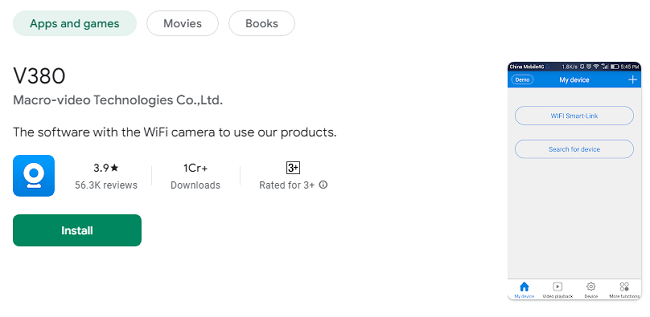
How To Download & Install V380 App?
In today’s increasingly connected world, security is more important than ever. Whether you are monitoring your home, office, or business, having a reliable surveillance system can provide peace of mind. V380 is an application designed to connect users to their IP cameras, allowing them to monitor video feeds, control camera settings, and access advanced features like motion detection and two-way audio.
This guide will walk you through how to download and install V380, what features the app offers, and how to get the most out of it. Whether you're using it on an Android, iOS, PC, or Mac, we’ll provide detailed steps to ensure a smooth setup.
What is V380 App?
V380 is a popular app used to manage IP cameras. It provides users with the ability to remotely view video streams, adjust camera settings, record footage, and receive alerts when unusual motion is detected. The app works with a wide range of IP cameras, making it a versatile solution for both personal and professional surveillance.
Some of the key features of V380 include:
Real-time Video Streaming: Live streaming of video from connected IP cameras.
Motion Detection Alerts: Receive push notifications when motion is detected by the cameras.
Cloud Storage: Store video footage securely on the cloud.
Two-way Audio: Communicate through the camera with built-in microphone and speaker.
Pan, Tilt, and Zoom (PTZ) Controls: Control the camera’s direction and zoom features remotely.
V380 is designed to be user-friendly, which makes it suitable for people with little technical knowledge. It is available for Android, iOS, PC, and Mac, but the download process can vary depending on the platform you're using.
How to Download V380 on Different Devices?
1. Download V380 for Android
Downloading V380 on your Android phone or tablet is a quick and easy process. Follow these steps:
Open Google Play Store: On your Android device, open the Google Play Store app.
Search for V380: In the search bar, type V380.
Install the App: Locate the official V380 app in the search results and click the Install button.
Open the App: Once the installation is complete, tap on the Open button to launch the app.
Set Up Your Account: You will need to create a V380 account or log in with an existing account. Follow the prompts to add your camera and configure the app.
2. Download V380 for iOS (iPhone and iPad)
The process for downloading V380 on iOS devices is similar to Android. Here’s how to do it:
Open the App Store: Open the App Store on your iPhone or iPad.
Search for V380: Use the search function to find the V380 app.
Download and Install: Tap on the Get button to download and install the app.
Launch the App: Once installation is complete, tap Open to launch V380.
Create an Account: Set up a new V380 account or log into your existing one, and then add your camera to the app.
3. Download V380 for Windows PC
To use V380 on a Windows PC, you will need to use an Android emulator like BlueStacks, as V380 doesn’t have a native Windows version. Here’s how to install it:
Download BlueStacks: Go to the official BlueStacks website here and download the emulator for Windows.
Install BlueStacks: Open the installer and follow the instructions to complete the installation of BlueStacks on your PC.
Launch BlueStacks: Once installed, open BlueStacks and sign in with your Google account.
Install V380 from Google Play Store: Open the Google Play Store inside BlueStacks and search for V380. Install the app just like you would on a mobile device.
Start Using V380: After installation, open the V380 app inside BlueStacks and set it up by adding your cameras.
4. Download V380 for Mac
For Mac users, the process is similar to Windows in that V380 doesn't have a native macOS app. You'll need an Android emulator to run the app on your MacBook. Here’s the step-by-step guide:
Download BlueStacks for macOS: Go to the official BlueStacks website and download the macOS version.
Install BlueStacks: Open the installer file and follow the installation instructions.
Sign in to Google Play Store: After installation, launch BlueStacks and sign in using your Google account.
Search for V380 in the Play Store: In BlueStacks, search for V380 and install it.
Open V380 on Your Mac: Once installation is complete, click on the V380 icon in BlueStacks to launch the app.
Features of V380
V380 comes with a variety of features that make it a go-to solution for home and business security. Here’s an overview of what you can expect:
1. Live Video Streaming
V380 provides real-time video feeds, allowing you to view what’s happening around your property at any time. Whether you're at home or on the go, you can use the app to monitor your cameras.
2. Motion Detection
One of the most valuable features of V380 is motion detection. The app can alert you whenever movement is detected by the camera, allowing you to respond quickly if something suspicious happens.
3. Cloud Storage
V380 offers cloud storage for your recorded footage, ensuring your data is secure and accessible from anywhere. This is especially useful if your local storage runs out or if the footage is lost due to a hardware malfunction.
4. PTZ (Pan, Tilt, and Zoom)
If your camera supports PTZ functionality, you can control the camera remotely via V380. This gives you the ability to adjust the view for a better angle or zoom in on specific areas of interest.
5. Two-Way Audio
For cameras with two-way audio, V380 allows you to communicate through the camera. This is ideal for speaking with visitors, giving instructions to family members, or warning intruders.
6. Night Vision
Many V380-compatible cameras feature night vision, allowing you to monitor areas even in low-light conditions. Whether it's day or night, V380 provides continuous surveillance.
Troubleshooting Common Issues
While V380 is a reliable app, users may occasionally encounter issues. Below are some common problems and their solutions:
1. V380 Not Opening
Solution: Ensure that your device is connected to the internet. Try restarting the app, or reinstalling it if the issue persists. If using an emulator, try restarting the emulator as well.
2. Camera Feed is Freezing or Lagging
Solution: Check your internet connection. A weak or unstable connection can lead to freezing or lagging of the camera feed. Try switching to a stronger Wi-Fi network.
3. Cannot Add a Camera
Solution: Ensure that the camera is properly connected to the internet and that it is within range of your Wi-Fi network. Also, double-check the camera’s credentials to make sure you’re entering them correctly.
4. No Sound from the Camera
Solution: If your camera has a microphone and speaker, ensure that both are enabled in the settings. Also, check your device’s volume settings to ensure audio is turned on.
Frequently Asked Questions (FAQs)
Q1: Is V380 free to download?
Yes, the V380 app is free to download and use. However, some premium features, like cloud storage, may require in-app purchases.
Q2: Can I use V380 without an internet connection?
No, an internet connection is required to stream video and receive alerts from your cameras. V380 needs a stable connection to function properly.
Q3: Can I control multiple cameras with V380?
Yes, you can add multiple cameras to the V380 app and switch between them as needed. The app supports multi-camera monitoring.
Q4: Is V380 compatible with all IP cameras?
V380 is compatible with many IP cameras that support ONVIF or use standard RTSP streaming. Always check camera compatibility before purchasing.
Q5: Can I use V380 for business surveillance?
Yes, V380 is suitable for both home and business surveillance. You can monitor multiple cameras at once, making it ideal for large properties.
Q6: Does V380 offer cloud storage?
Yes, V380 offers cloud storage for your recorded footage. This ensures your videos are securely stored and accessible from any device.
Conclusion
V380 is a powerful and user-friendly app for managing and monitoring your IP cameras. By following the steps outlined above, you can easily download and install V380 on Android, iOS, PC, or Mac. With its range of features, such as live video streaming, motion detection, cloud storage, and PTZ controls, V380 makes it easier than ever to keep an eye on your home, office, or business. If you encounter any issues, the troubleshooting tips provided should help you resolve