How to Connect Cameras to V380 App Using WiFi?
In today’s world, ensuring the security of your home or business is more important than ever. One of the best ways to enhance security is by installing a reliable WiFi camera, and the V380 WiFi camera is one of the most popular choices on the market. Whether you're looking to monitor your home, office, or any other property, the V380 offers a simple solution with advanced features such as remote viewing, motion detection, two-way audio, and more.
This guide will walk you through everything you need to know about using the V380 WiFi camera, from installation to advanced features and troubleshooting. By the end, you’ll be equipped to make the most out of your V380 camera, ensuring that your property is secure and that you can monitor it from anywhere in the world.
What is the V380 Camera App?
The V380 app is an intelligent IP camera designed for use with WiFi networks. It is commonly used for home security, baby monitoring, office surveillance, and other purposes where remote monitoring is essential. The camera is equipped with several features that make it easy to use, including:
WiFi Connectivity: Allows you to connect the camera to your home or business WiFi network for wireless operation.
Live Streaming: Enables real-time video streaming that can be accessed remotely via the V380 app on your smartphone, tablet, or computer.
Motion Detection: Sends alerts when motion is detected within the camera’s field of view.
Two-Way Audio: Allows you to listen and speak through the camera, making it perfect for communication with loved ones or employees.
Pan, Tilt, and Zoom (PTZ) Control: Provides the ability to control the camera’s angle remotely.
Cloud Storage: Securely stores video footage on the cloud, allowing you to access recordings at any time.
Night Vision: Equipped with infrared LED lights for clear video even in low-light conditions.
These features make the V380 WiFi camera a versatile tool for home and business security.
How to Set Up & Connect Camera to V380 App Using WiFi?
Before you start using your V380 camera, you’ll need to set it up correctly. This process can be done in a few easy steps:
Step 1: Unbox and Power Up
First, unbox your V380 camera and ensure that you have all the necessary components. Typically, this includes:
The camera unit itself
A power adapter and cable
A quick start guide
Plug the camera into a power outlet using the provided power adapter. You’ll see the camera’s indicator light flash, signaling that it’s powered on.
Step 2: Download the V380 App
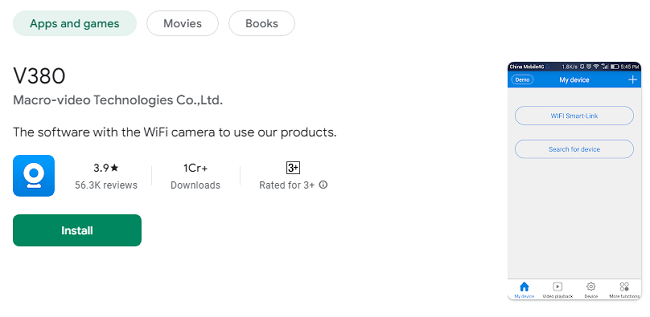
Next, download the V380 app on your smartphone or tablet. The app is available for both Android and iOS devices:
For Android devices, visit the Google Play Store.
For iOS devices, visit the Apple App Store.
Search for "V380" and click Install to download and install the app.
Step 3: Create an Account
Once the app is installed, open it. You will be prompted to create an account. This typically involves entering an email address and setting a password. If you already have a V380 account, simply log in.
Step 4: Add the Camera
To add your V380 camera to the app, follow these steps:
Open the V380 app and log in.
Click on the “+” icon or “Add Device” to begin adding your camera.
Select your camera model from the list of available devices.
You will then be asked to scan the camera’s QR code. The QR code can be found on the camera itself or in the manual.
Once scanned, the app will guide you through the process of connecting the camera to your WiFi network. You’ll need to enter your WiFi credentials during this step.
After successfully connecting the camera to the WiFi, you should see a live feed from your camera in the app.
Step 5: Configure Settings
Now that your camera is connected, you can configure additional settings such as:
Motion Detection: Set up motion detection zones and alerts.
Two-Way Audio: Enable or disable two-way audio, depending on your needs.
Cloud Storage: Set up cloud storage to automatically save video footage.
PTZ Control: Adjust the camera's pan, tilt, and zoom settings for optimal coverage.
How to Use the V380 App?
Once your camera is set up and configured, you can start using it to monitor your property. Here’s how:
1. Live Video Streaming
The V380 app allows you to view live footage from your camera. Simply open the app, select your camera, and tap the Live View button. You can watch real-time video of your property and make adjustments to the camera’s angle if needed.
2. Motion Detection Alerts
V380’s motion detection feature sends alerts to your device when motion is detected by the camera. This can be useful for knowing when someone enters a room or if there’s suspicious activity. You can customize the motion detection sensitivity and configure the app to notify you via push notifications, email, or SMS.
3. Two-Way Audio
If your camera is equipped with two-way audio, you can use this feature to listen and speak through the camera. This is especially useful if you're using the camera as a baby monitor, pet camera, or for office surveillance. To use two-way audio:
Open the live feed in the V380 app.
Tap on the microphone icon to listen to sounds around the camera.
Tap on the speaker icon to speak through the camera.
4. PTZ Control
If your camera supports PTZ (Pan, Tilt, Zoom) functionality, you can control the camera’s movement directly from the app. This allows you to adjust the viewing angle, zoom in on specific areas, and ensure the camera covers the areas you need to monitor. The controls are typically displayed as directional arrows or zoom buttons in the app.
5. Cloud Storage and Playback
The V380 camera can be set up to automatically upload footage to the cloud, ensuring your recordings are safe and easily accessible. To access recorded footage:
Open the app and select your camera.
Tap on the Playback button to view recorded footage.
You can select specific dates and times to view recordings and even download footage to your device.
Troubleshooting with V380 App
While the V380 camera is generally reliable, users may experience occasional issues. Here are some common problems and troubleshooting tips:
1. Camera Not Connecting to WiFi
Solution: Ensure that your WiFi network is operational and that the camera is within range. Double-check your WiFi password, as entering the wrong credentials will prevent the camera from connecting.
2. No Video Feed
Solution: If you're not seeing a live video feed, ensure that the camera is powered on and connected to the internet. Try restarting the camera by unplugging it and plugging it back in.
3. Motion Detection Alerts Not Working
Solution: Check the motion detection settings in the app to ensure they are enabled. Make sure the camera is positioned in a way that can detect movement effectively.
4. Poor Video Quality
Solution: Poor video quality can be due to a slow internet connection. Ensure that both your camera and your device have a stable WiFi connection. You may also want to adjust the video quality settings in the app.
Frequently Asked Questions (FAQs)
Q1: Can I access the V380 camera from multiple devices?
Yes, you can log in to the V380 app on multiple devices, such as smartphones, tablets, and computers, to monitor the camera’s feed from any location.
Q2: How can I store recorded footage from my V380 camera?
V380 supports cloud storage for recorded footage. You can also insert a microSD card into the camera to save footage locally.
Q3: Can I use the V380 camera for baby monitoring?
Yes, the V380 camera’s two-way audio and motion detection features make it an ideal solution for baby monitoring.
Q4: Is the V380 camera weatherproof?
No, the standard V380 camera is not designed for outdoor use. However, V380 offers outdoor camera models that are weather-resistant and designed for outdoor monitoring.
Q5: Can I view the camera’s feed without the internet?
No, an internet connection is required to connect your camera to the app and stream live footage.
Conclusion
The V380 WiFi camera is an excellent solution for those looking to monitor their property with a reliable and feature-rich camera system. With its easy setup, live streaming capabilities, motion detection, two-way audio, and cloud storage options, the V380 camera provides all the tools you need for effective surveillance. By following the steps outlined in this guide, you can quickly set up your camera and start using it for enhanced security. If you encounter any issues, troubleshooting steps are provided to help resolve common problems and keep your camera running smoothly.