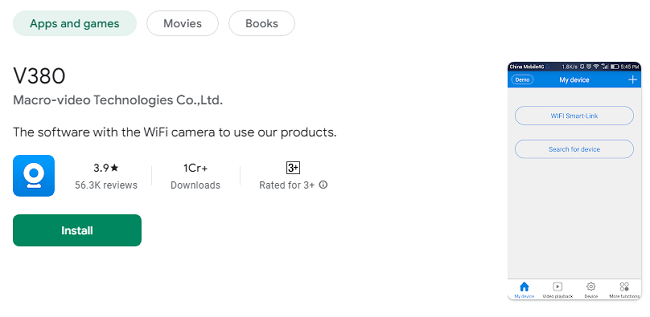
V380 for iPhone & iPad (iOS) - Free Download
The V380 app is an advanced surveillance solution that allows iPhone users to manage and monitor IP cameras remotely. Whether you’re safeguarding your home, office, or any other location, the V380 app brings security to your fingertips with features like live video streaming, motion detection, two-way audio, and remote camera control. This guide will provide a step-by-step process on how to download the V380 app on your iPhone, explain its key features, and offer solutions to common issues.
What is the V380 App?
The V380 app is an intuitive mobile application designed to connect with and manage IP cameras. It works seamlessly on both Android and iOS devices, including the iPhone, providing users with the ability to view live camera feeds, receive motion alerts, and access recorded footage from virtually anywhere. The app is perfect for users who want an easy-to-use solution for home security, pet monitoring, office surveillance, and more.
Key Features of the V380 App for iOS
Here’s a breakdown of the key features available to iPhone users who download the V380 app:
1. Live Video Streaming
The V380 app allows you to access real-time video streams from your connected cameras. Whether you’re at home or on the go, you can view your property 24/7.
2. Two-Way Audio
With two-way audio, you can not only hear what's happening around your camera, but also communicate with anyone nearby using your iPhone's microphone and speaker.
3. Motion Detection Alerts
One of the most useful features is motion detection. The app sends you instant notifications when any motion is detected by your camera, helping you stay aware of activities in your surveillance area.
4. Playback Recorded Footage
The V380 app allows you to access and play back recorded footage stored on your camera's SD card or in the cloud. This makes it easy to review past events and check for security breaches.
5. Multi-Camera Support
If you have more than one camera, the app supports managing and monitoring multiple cameras simultaneously, making it perfect for larger properties or businesses.
6. Remote Camera Control
For PTZ (pan-tilt-zoom) cameras, the V380 app allows you to adjust the camera's direction and zoom remotely, providing a more dynamic and flexible monitoring experience.
7. Cloud Storage
V380 offers cloud storage options for your recorded footage, which ensures your data is safe even if your camera’s local storage is damaged or stolen.
8. Night Vision
If your camera has infrared or night vision capabilities, the V380 app enables you to view clear images even in low-light conditions, enhancing security at night.
9. Easy-to-Use Interface
The app’s clean and intuitive interface makes it easy for anyone to use, even if they have no prior experience with surveillance systems.
How to Download & Install V380 for iPhone & iPad?
Follow these simple steps to download and install the V380 app on your iPhone:
Step 1: Check Device Requirements
Before proceeding with the download, ensure that your iPhone meets the following requirements:
iOS Version: iOS 9.0 or higher
Storage Space: At least 100MB of free space
Internet Connection: A stable Wi-Fi or cellular connection
Step 2: Visit the App Store
Open the App Store on your iPhone.
In the search bar at the top, type V380 and press enter.
The official V380 app should appear in the search results (look for the logo and description matching the surveillance functionality).
Step 3: Download the App
Tap on the Download button (a cloud icon with an arrow).
Wait for the app to download. The process should only take a few moments, depending on your internet connection speed.
Step 4: Install the App
Once the app is downloaded, it will automatically install on your iPhone. After installation, tap Open to launch the V380 app.
Step 5: Set Up Your Account
When you open the app for the first time, you’ll need to sign in or create a new account. You can sign up with an email address or link an existing social media account if that’s an option.
Follow the on-screen instructions to complete the setup and grant necessary permissions, such as access to the microphone and camera (if required).
Step 6: Add Your Camera
Make sure your IP camera is connected to the same Wi-Fi network as your iPhone.
Tap the + or Add Camera button to connect a new camera.
Follow the prompts to either scan a QR code from the camera or manually input the camera’s unique ID.
Step 7: Start Monitoring
Once the camera is added, you’ll be able to access live footage, adjust settings, and monitor activities directly from your iPhone.
Benefits of Using the V380 App on iOS
1. Convenience
With the V380 app on your iPhone, you can monitor your property from anywhere. Whether you’re at work, out for the day, or on vacation, access to your cameras is just a few taps away.
2. Cost-Effective Security
The app works with affordable IP cameras, providing a budget-friendly solution for anyone looking to increase security without the high costs of traditional surveillance systems.
3. Flexibility
Control and monitor your cameras remotely, including adjusting angles and zooming in on specific areas. You can also manage multiple cameras from one interface.
4. Real-Time Alerts
Motion detection alerts ensure you’re notified instantly if there’s any suspicious activity, allowing for quick responses.
5. Cloud Storage
Cloud storage options give you peace of mind, knowing that your footage is securely backed up online.
Troubleshooting Common Issues with V380 App
Here are solutions to some of the most common problems users experience when using the V380 app on iPhone:
Problem 1: App Not Downloading
Ensure that your iPhone is running iOS 9.0 or later.
Check that your internet connection is stable.
Try restarting your device and then attempt the download again.
Problem 2: Camera Not Connecting
Ensure that the camera is connected to the same Wi-Fi network as your iPhone.
Check the camera’s power supply.
Try resetting the camera and re-adding it to the app.
Problem 3: No Live Video Feed
Make sure your internet connection is strong enough to support live streaming.
Check that the camera is powered on and properly connected to the network.
Restart both the app and the camera.
Problem 4: Notifications Not Working
Verify that push notifications are enabled in the app settings.
Check that the app has permission to send notifications via the iPhone settings.
Tips for Using the V380 App Efficiently
Regularly Update the App
Keeping the V380 app updated ensures that you have access to the latest features and security patches.
Enable Motion Detection
Activate motion detection to receive real-time alerts whenever your camera detects movement.
Adjust Video Settings
Tailor video quality settings to your preferences, especially when streaming in low-bandwidth areas.
Use Cloud Storage for Backup
Enable cloud storage to ensure that your footage is safely backed up and accessible at any time.
Frequently Asked Questions (FAQs)
Q1: Is the V380 app free?
Yes, the V380 app is free to download and use. However, some advanced features such as cloud storage may require a subscription.
Q2: What if my camera doesn’t show up in the app?
Make sure the camera is connected to the same Wi-Fi network as your iPhone. If the camera still doesn’t appear, try resetting the camera and re-adding it to the app.
Q3: Can I access footage from previous days?
Yes, you can view recorded footage stored on your camera’s SD card or on cloud storage (if enabled).
Q4: Can I monitor multiple cameras at once on my iPhone?
Yes, the V380 app supports multi-camera management, allowing you to monitor multiple locations simultaneously.
Q5: Is there a way to store footage in the cloud?
Yes, the app offers cloud storage options for your recorded footage, which can be accessed from anywhere.
Q6: Does the app work without an internet connection?
The app requires an internet connection for live streaming and remote monitoring, but you can view locally stored footage offline.
Q7: Can I use the app on an iPad?
Yes, the V380 app is also available for iPad, and it functions similarly to the iPhone version.
Conclusion
The V380 app for iPhone is a powerful tool for remote surveillance, offering features like live video streaming, two-way audio, motion detection, and more. Whether you’re monitoring your home, office, or other locations, this app provides peace of mind by keeping you connected to your security system wherever you go. With easy installation, intuitive controls