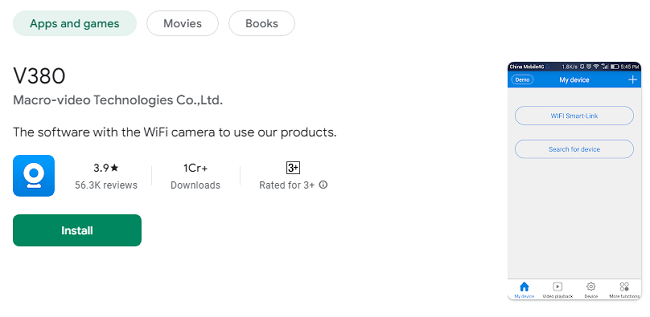
How to Install & Use V380 for Computer?
Security has become a paramount concern in today’s world. Whether it's your home or business, ensuring the safety of your premises requires advanced surveillance systems. V380 is a popular app that allows you to monitor security cameras through mobile devices. But did you know that you can also use V380 for your computer?
This guide will walk you through everything you need to know about setting up V380 on your computer, its features, and how you can leverage it for security purposes. If you prefer using a larger screen for monitoring your cameras or need to access additional functionalities, V380 for computer is an excellent choice. Let's explore how to set up and use the V380 app effectively on your PC or laptop.
About V380 App
V380 is a mobile app designed to help users manage their security cameras remotely. It supports a wide variety of IP cameras and provides real-time monitoring, playback, and control of video feeds. With V380, you can watch live video from your cameras, control pan-tilt-zoom (PTZ) features, and even interact with the environment via two-way audio.
The app supports various features such as:
Real-time video streaming
Remote control for PTZ cameras
Two-way communication through audio
Cloud storage and video playback
Motion detection alerts
While V380 was originally designed for smartphones, it can also be used on computers, providing an efficient way to monitor your security system on a larger screen.
Key Features of V380 for Computer
V380 offers the same set of features on a computer as it does on mobile devices. However, there are some advantages when using it on a desktop or laptop, including a larger screen, better control, and enhanced multitasking.
1. Real-Time Video Streaming
V380 allows you to watch live video from your connected security cameras. The real-time streaming feature ensures that you can monitor every corner of your property with no delay, providing peace of mind and immediate awareness of any security issues.
2. Multi-Camera Support
V380 for computer supports the connection of multiple cameras. This means you can monitor several areas of your property at once, all from your desktop or laptop. Whether you’re using a single camera or an array of cameras, V380 lets you switch between different views effortlessly.
3. Motion Detection Alerts
One of the most useful features of V380 is its motion detection capabilities. If there is any movement detected by the camera, the app will immediately send an alert to your computer. This helps ensure that you stay informed of any suspicious activity around your property.
4. PTZ Camera Control
V380 offers users the ability to control PTZ cameras remotely. With the app installed on your computer, you can pan, tilt, and zoom in on areas that need more attention. This feature gives you complete control over your camera’s view.
5. Two-Way Audio
For cameras with two-way audio capabilities, V380 for computer enables communication between you and anyone near the camera. Whether you're speaking to someone at your door or issuing instructions to someone within the camera’s range, this feature is incredibly useful.
6. Cloud Storage and Playback
You can save video recordings to the cloud with V380, allowing you to access footage anytime. The app also allows you to review previously recorded footage, which is critical for analyzing past events or incidents.
7. Night Vision
Many IP cameras that are compatible with V380 feature infrared night vision, allowing you to monitor your property even in low-light conditions. The night vision feature works well, ensuring that your security surveillance continues around the clock.
How to Download & Install V380 for Computer?
V380 is primarily a mobile app designed for smartphones and tablets. However, using an Android emulator, you can install and run V380 on your computer. Here’s how you can do that:
Step 1: Download an Android Emulator
To run V380 on your computer, you need to use an Android emulator. These emulators allow Android apps to run on a computer by mimicking the Android environment.
BlueStacks and NoxPlayer are two popular Android emulators that you can use. For this guide, we'll use BlueStacks as it's widely recognized for its reliability and ease of use.
Go to the official BlueStacks website: https://www.bluestacks.com.
Download the emulator for Windows or Mac, depending on your system.
Step 2: Install BlueStacks
Once the download is complete, open the installer and follow the on-screen instructions to install BlueStacks on your computer.
After the installation is finished, launch the BlueStacks app.
Sign in with your Google account to access the Google Play Store.
Step 3: Download V380 from the Google Play Store
Inside BlueStacks, open the Google Play Store and search for V380.
Select the official V380 app from the search results.
Click on the Install button to download the app onto your computer.
Step 4: Open and Use V380 on Your Computer
Once the installation is complete, you can open V380 from the BlueStacks home screen. Log in with your V380 account or create a new one if you don't have an account already. You can then start adding your security cameras and monitoring your property.
Advantages of Using V380 for Computer
While the mobile version of V380 is quite convenient, there are several advantages to using the app on a computer.
1. Bigger Screen for Better Monitoring
With a computer, you can enjoy a larger screen to monitor your camera feeds. This is especially helpful if you are managing multiple cameras and need to view several streams at once.
2. Enhanced Control and Multitasking
The larger screen and the ability to use a mouse and keyboard offer enhanced control compared to using a touchscreen. You can quickly switch between camera views, zoom in and out, and interact with the interface more efficiently.
3. Increased Stability and Power
Using V380 on a computer can offer greater stability, especially when monitoring live feeds for extended periods. The computer’s more powerful hardware ensures smoother performance compared to running the app on a smartphone.
4. Simultaneous Usage
While using V380 for computer, you can continue working on other tasks. The app can run in the background while you use other programs, providing seamless multitasking.
Troubleshooting Common Issues with V380
While V380 is a reliable app, you may encounter a few issues along the way. Here are some common problems and how to resolve them:
Issue 1: V380 Not Launching on PC
Solution: Make sure that BlueStacks is updated to the latest version. If not, update it from the BlueStacks settings. You may also try restarting both BlueStacks and your computer.
Issue 2: Video Feed Is Choppy or Lagging
Solution: A slow internet connection can cause video lag. Make sure you have a stable internet connection. You can also adjust the video quality in the BlueStacks settings to reduce lag.
Issue 3: Unable to Connect Camera
Solution: Ensure that your camera is properly connected to your network and that the camera settings match your local network configuration. Restart the camera if needed.
Issue 4: Audio Not Working
Solution: Make sure that your computer's microphone and speakers are functioning properly. Check the app settings to ensure that audio permissions are granted.
Frequently Asked Questions (FAQs)
Q1: Is V380 for Windows free?
Yes, V380 is free to download and use on your computer. However, certain features like cloud storage may require a subscription.
Q2: Can I use V380 without an emulator on Windows?
No, V380 does not have a native Windows version. To use V380 on a Windows PC, you need to download and install an Android emulator like BlueStacks or NoxPlayer.
Q3: How many cameras can I monitor using V380 for computer?
V380 allows you to connect multiple cameras, so you can monitor several areas at once. The number of cameras you can add depends on the capabilities of your network and your device.
Q4: Is V380 compatible with all IP cameras?
V380 is compatible with most IP cameras, especially those that support the ONVIF protocol. Be sure to check your camera's specifications for compatibility before purchasing.
Q5: Can I use V380 for my business or office?
Yes, V380 is suitable for both personal and professional use. It can be used to monitor your home, office, or any other property, making it ideal for both home security and business surveillance.
Conclusion
V380 for computer is a versatile and effective tool for managing and monitoring your security cameras. By following the installation steps outlined in this guide, you can easily set up V380 on your PC or laptop, allowing you to monitor live video feeds, control PTZ cameras, and receive motion detection alerts, all from a larger and more convenient screen. With its user-friendly interface and robust features, V380 for computer is a great option for anyone looking to enhance their security monitoring setup.